Getting Started
How the Integration Works
This guide explains how the Consolidate Health Connect API works from start to finish.
At a high level, your application never connects directly to EHR systems. Instead, you send the patient through a secure authorization flow hosted by Consolidate Health, and then use the API to retrieve patient-approved data.
The core idea
The integration is built around three principles:
Patient consent comes first
A patient must explicitly approve data sharing before your app can access anything.
Consolidate Health handles EHR connectivity
Your app does not integrate separately with Epic, Cerner, Athena, or other systems.
Your app receives secure tokens, not credentials
You use OAuth tokens to request data on behalf of the patient.
Step 1: Your application starts the authorization flow
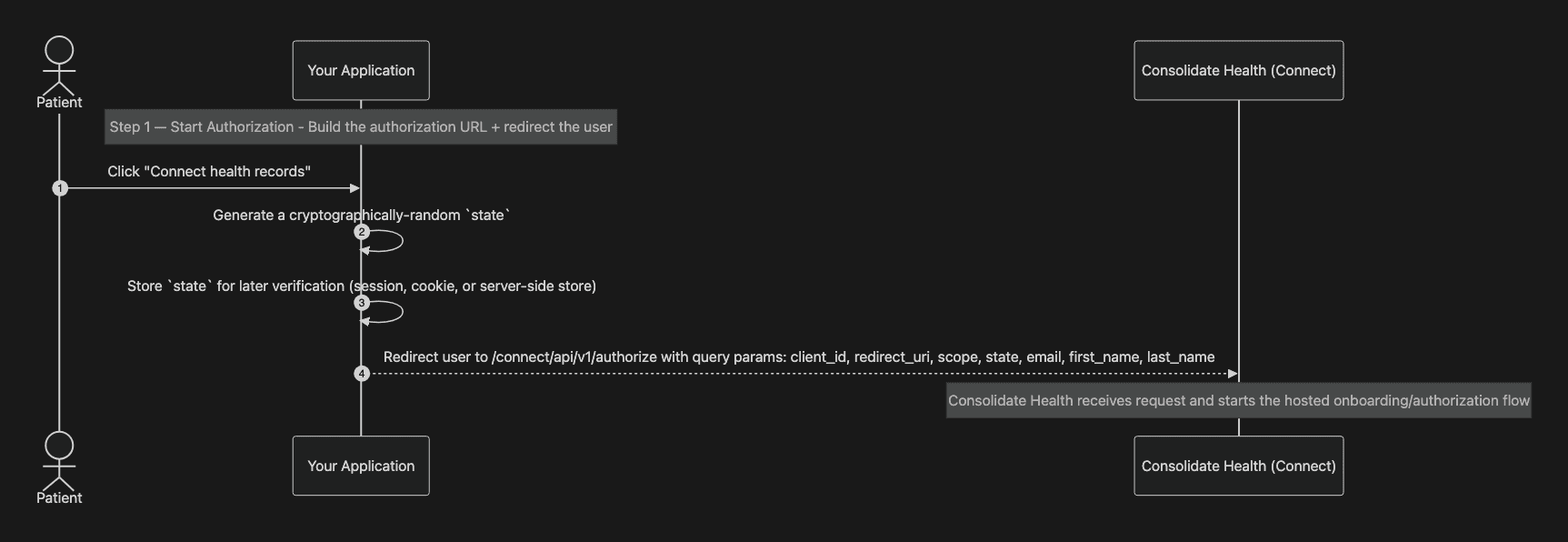
This step begins inside your application. Your goal is to send the patient to Consolidate Health with enough information to start a secure, patient-consented connection.
What your application does:
Presents a clear call to action such as “Connect your health records”.
Generates a cryptographically random
statevalue to protect against CSRF attacks.Stores the state value temporarily (for example, in a server session or signed cookie).
Constructs the Consolidate Health authorization URL with the required query parameters:
Your
client_idYour registered
redirect_uriRequested
scopevalues (patient:read-allandoffline_access)The generated
stateThe patient’s
email,first_name, andlast_name
Redirects the patient’s browser to the authorization URL.
At the end of this step:
The patient leaves your application and enters the Consolidate Health experience.
No patient data has been shared yet.
Your application is waiting for the redirect callback in a later step.
Step 2: Patient onboarding and identity verification
Once redirected, Consolidate Health takes over the experience to verify the patient and prepare them for connecting their records.
What the patient experiences:
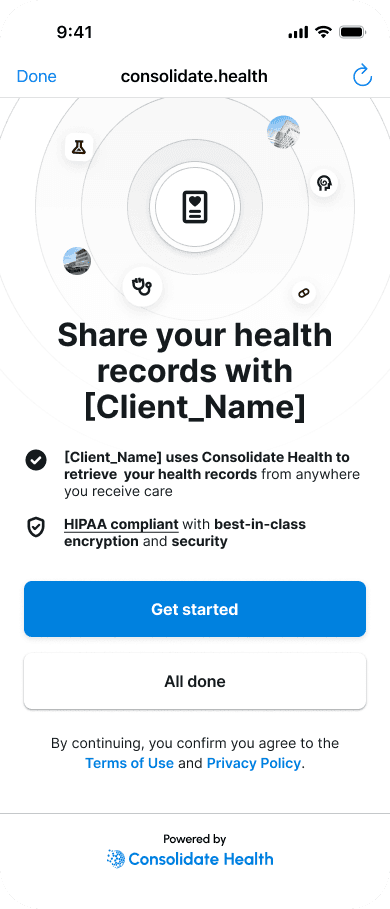
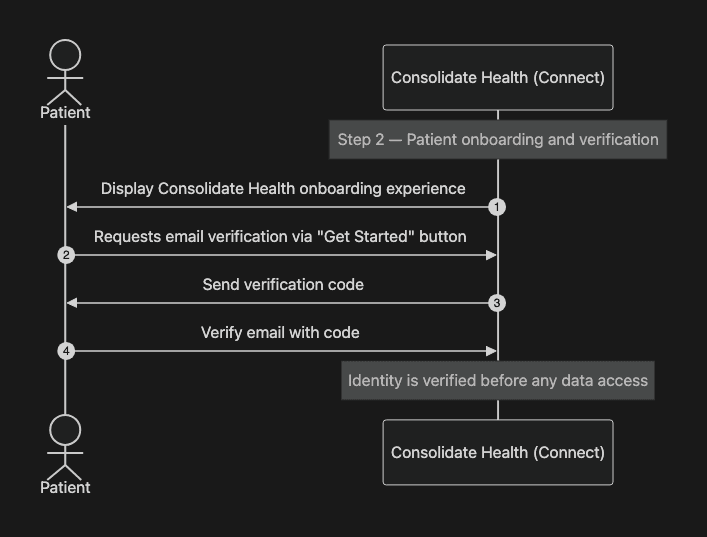
The patient lands on a Consolidate Health–hosted onboarding screen.
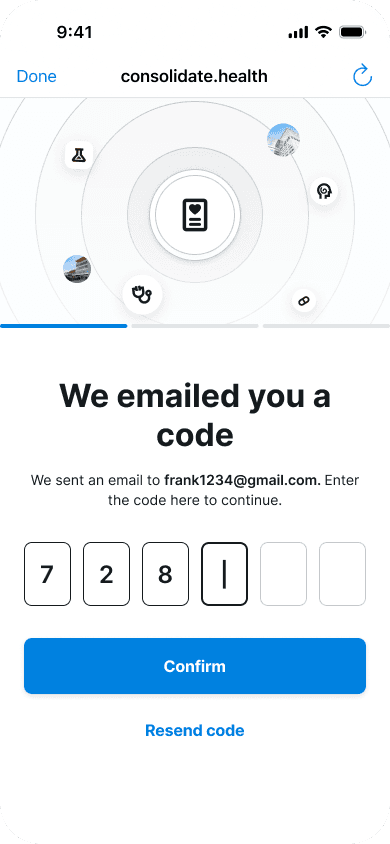
The patient uses the “Get started” button and receives a verification code to their email address you provided us.
The patient enters the verification code to complete email verification.
Identity and session context are established before any data connections occur.
What this step ensures:
The patient is reachable and intentionally initiating the connection.
Authorization attempts are tied to a verified individual.
Downstream EHR connections and consent are anchored to a validated session.
At the end of this step:
The patient remains within the Consolidate Health flow.
No EHR portals are connected yet.
The patient is ready to identify providers and connect records in the next step.
Step 3: Patient identifies their providers and connects (AI-guided)
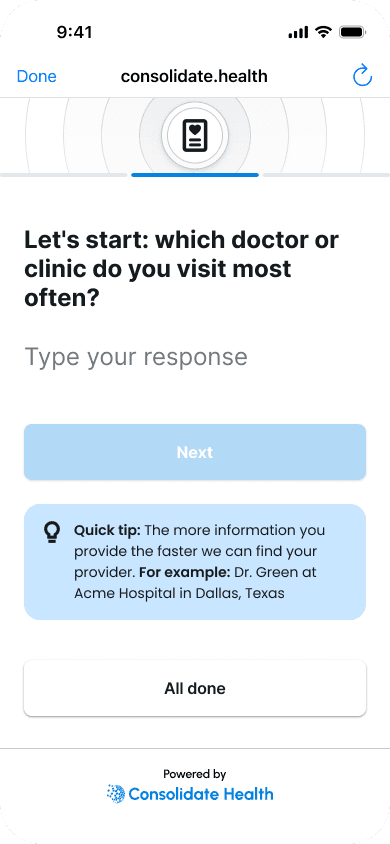
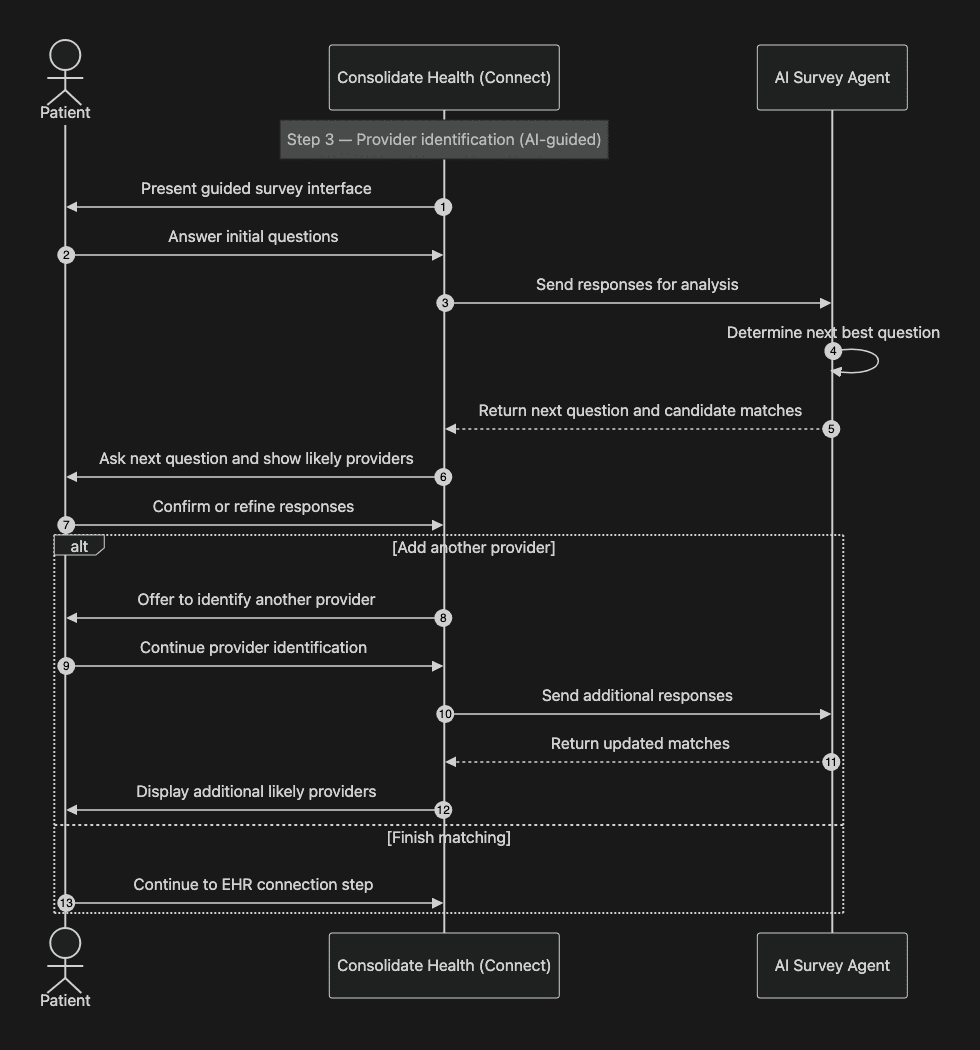
Before a patient connects any EHR portals, Consolidate Health asks a set of questions to help identify the patient’s provider organizations.
Here’s what the patient experiences:
The patient is presented with a short set of questions (for example: where they receive care, prior visits, locations, or other identifying details).
An AI agent adapts the next questions based on the patient’s answers.
As the patient responds, the agent matches the patient to likely provider organizations already represented in Consolidate Health’s system.
The patient can repeat this matching flow to add additional providers.
The flow continues until the patient chooses to stop or until all providers they receive care from are identified.
Once providers are identified, the patient proceeds to connect their EHR portal(s) for those providers.
Examples include:
Large health systems
Hospital portals
Ambulatory care platforms
A patient may connect multiple EHRs, and Consolidate Health aggregates the data behind the scenes.
This process only has to be done once, if the patient is returning to this experience their progress, EHR connections, and records are saved in our system for the user to access or pick up where they left off.
Step 4: Patient connects their EHR portal(s)
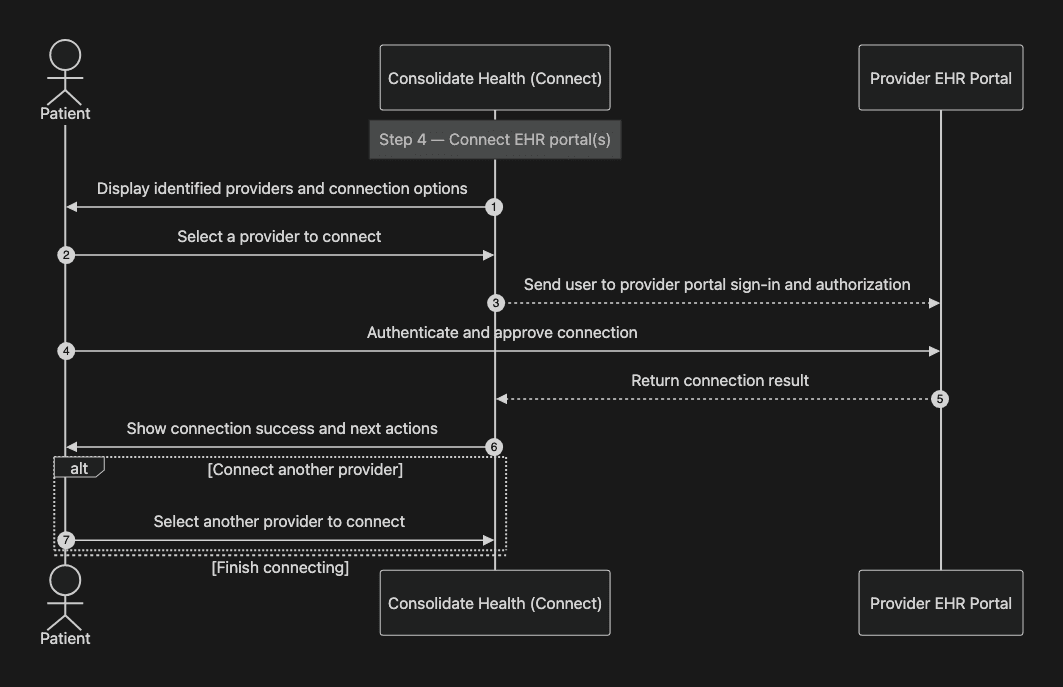
After providers are identified, the patient connects one or more EHR portals so Consolidate Health can retrieve records from those provider organizations.
What the patient experiences:
The patient sees a list of the provider organizations identified in the prior step.
For each provider, the patient chooses to connect (or skip) that provider’s portal.
The patient is taken through that portal’s login and authorization experience.
Once the connection succeeds, the patient returns to Consolidate Health and can connect additional providers.
The patient can repeat this until they’re done connecting portals.
Step 5: Patient reviews and approves sharing with your application
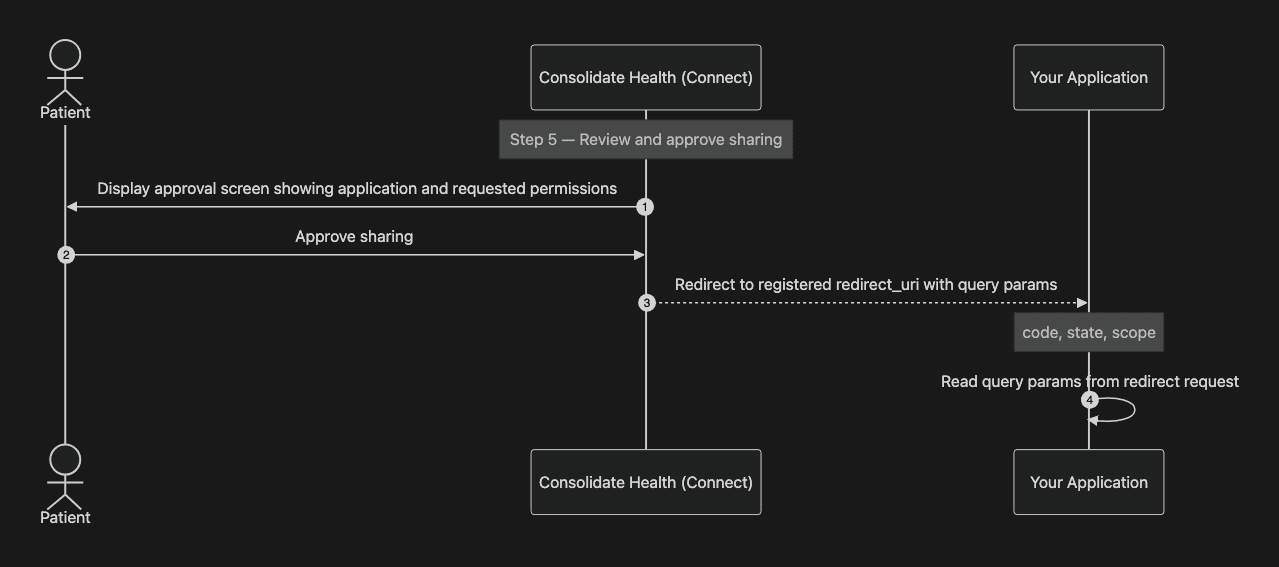
Once the patient has connected one or more portals, Consolidate Health presents a review step where the patient confirms they want to share data with your application.
What the patient experiences:
The patient sees your application name and the permissions being requested.
The patient reviews what they are approving and confirms they want to proceed.
After approval, Consolidate Health completes the authorization flow and redirects the patient back to your application.
Your application receives:
An authorization code
The original state value you provided in Step 1
The granted scope
Step 6: Your backend exchanges the authorization code for tokens
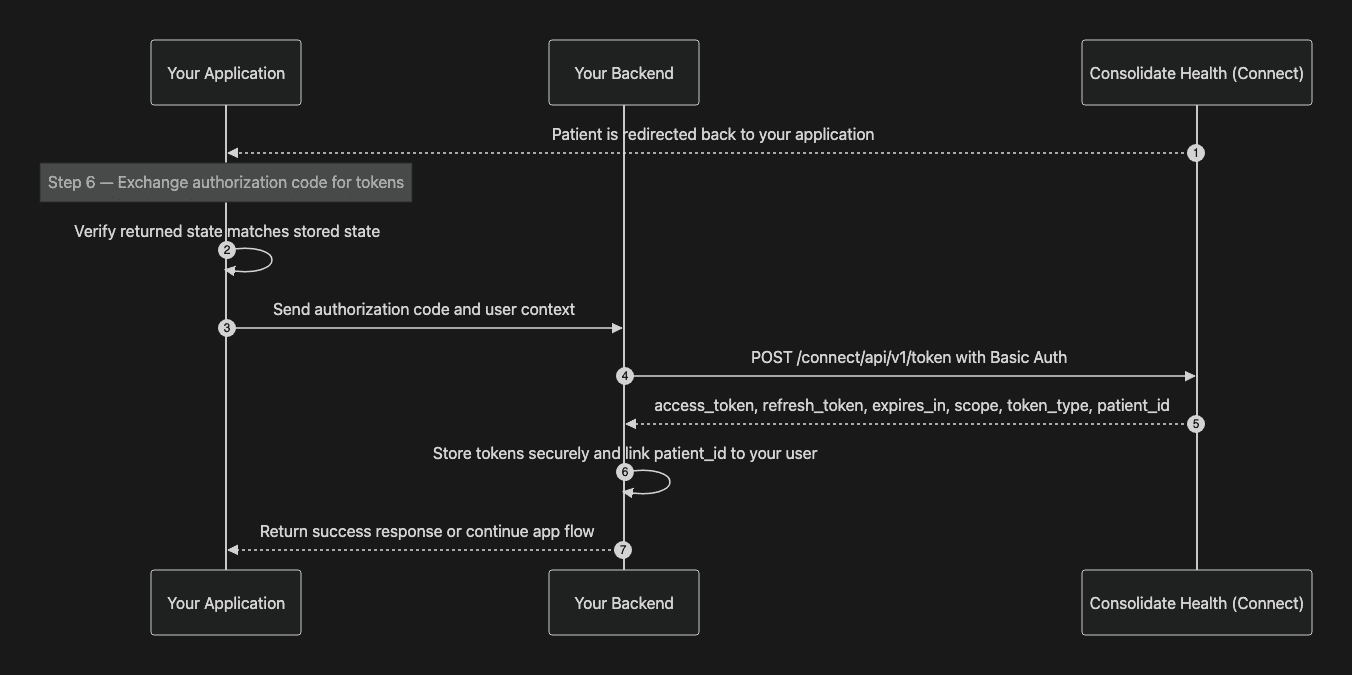
After the patient is redirected back to your application, your backend completes the OAuth flow by exchanging the authorization code for tokens.
What happens in this step:
Your application receives code and state at your registered
redirect_uri.Your app verifies the returned state matches the one you generated in Step 1.
Your backend sends a request to the Consolidate Health token endpoint using HTTP Basic Authentication Base64 encoded (
client_id:client_secret).Consolidate Health returns:
access_token(used to call the API)refresh_token(used to generate a new refresh and access token pair when the current access token expires)expires_inscope(token_typepatient_id(used in patient data endpoints)
Your backend stores tokens and patient IDs securely and associates them.
Step 7: Retrieve patient data using the API
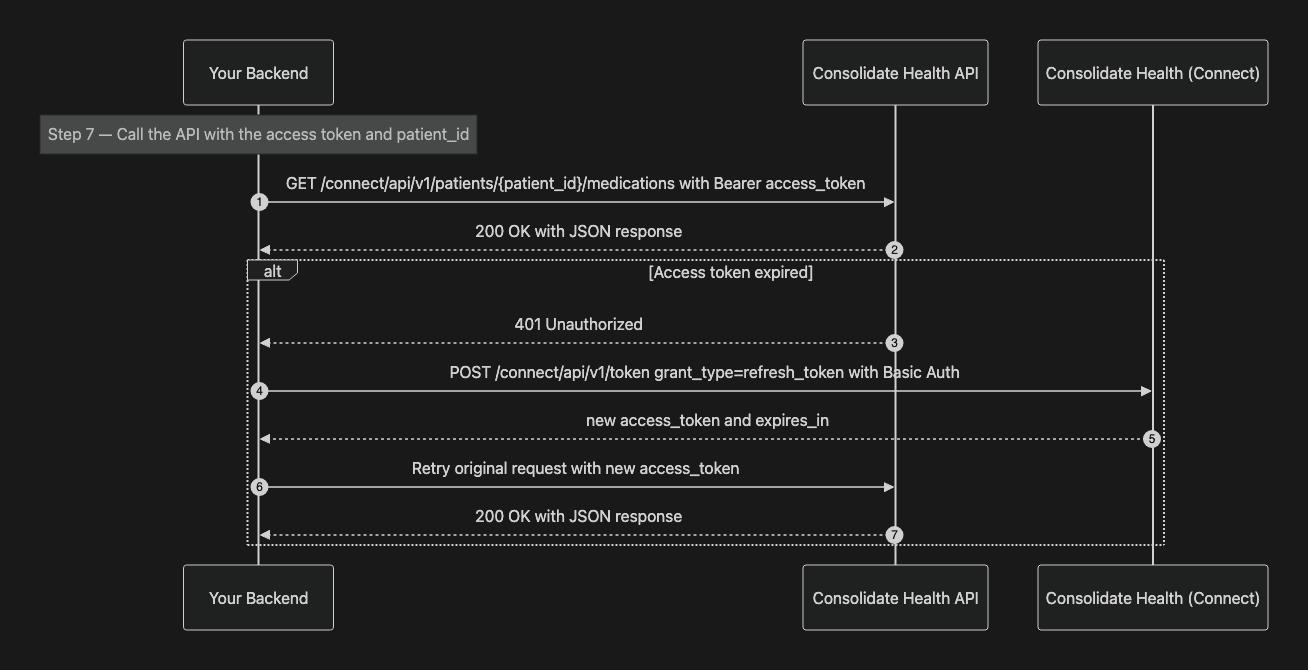
Once your backend has an access_token and patient_id, you can start retrieving patient data from the Consolidate Health API.
What happens in this step:
Your backend makes requests to patient data endpoints using:
Authorization: Bearer {access_token}The
patient_idin the URL path
The API returns JSON responses for the requested resource (medications, conditions, allergies, etc.).
If the access token expires, your backend uses the
refresh_tokento request a new access token, then retries the API request.
Common patterns:
Fetch and display data on demand (for example, when a patient opens a “Health Records” screen)
Sync data into your system for downstream workflows
Use
/ehr-connectionsto show which portals are connected and support troubleshooting
What your app is responsible for vs. what Consolidate Health handles
Consolidate Health handles:
Patient onboarding and verification
EHR connectivity and normalization
Consent management
OAuth authorization and token issuance
Your app handles:
Starting the authorization redirect
Receiving the callback
Securely exchanging the authorization code
Storing tokens safely
Making API requests when needed
This separation is intentional and designed to minimize complexity and compliance burden on your side.
Why a backend is required
The token exchange step uses your client secret, which must never be exposed publicly.
For that reason:
The token endpoint does not allow browser-only requests
Frontend-only implementations are not supported
Most integrations include a small backend service even if the product is primarily client-side
If you are building a mobile or frontend-only app, PKCE support is available by request.
What success looks like
A successful integration means:
Patients can connect their health records in a few minutes
Your app receives a valid
patient_idAPI requests return normalized patient data
The next guides walk through how to set this up step by step.
Ready to get started? Request Sandbox access
Any other questions? Get in touch